Avoid skipping heading levels
Sighted users skim a page visually - bigger text draws the eye first, and the layout does the rest. Screen reader users have a keyboard equivalent: jump from heading to heading and build a mental map of the page from the outline alone, the same way you might scan a table of contents. That only works if the levels are in order. Jump from <h2> straight to <h4> and a screen reader user either assumes they missed a section, or has no idea a subsection even exists.
Use headings elements to introduce the content.
Use only one
h1element per page.
<!-- Do not -->
<h6>Heading level 6</h6>
<h3>Heading level 3</h3>
<h1>Main heading</h1>
<h2>Heading level 2</h2>

<!-- Do -->
<h1>Main heading</h1>
<h2>Heading level 2</h2>
<h3>Heading level 3</h3>
<h4>Heading level 4</h4>
<h5>Heading level 5</h5>
<h6>Heading level 6</h6>
How to find the heading structure in a webpage ?
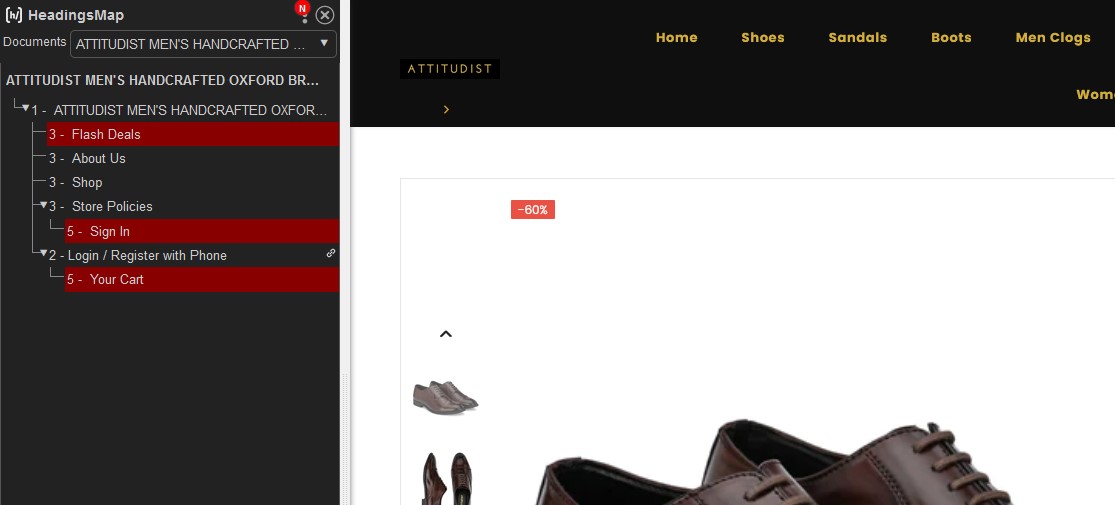
Best way is to use the chrome extension known as HeadingMap. It shows the list of headings and optional information about their level and if they break the correct hierarchical structure.
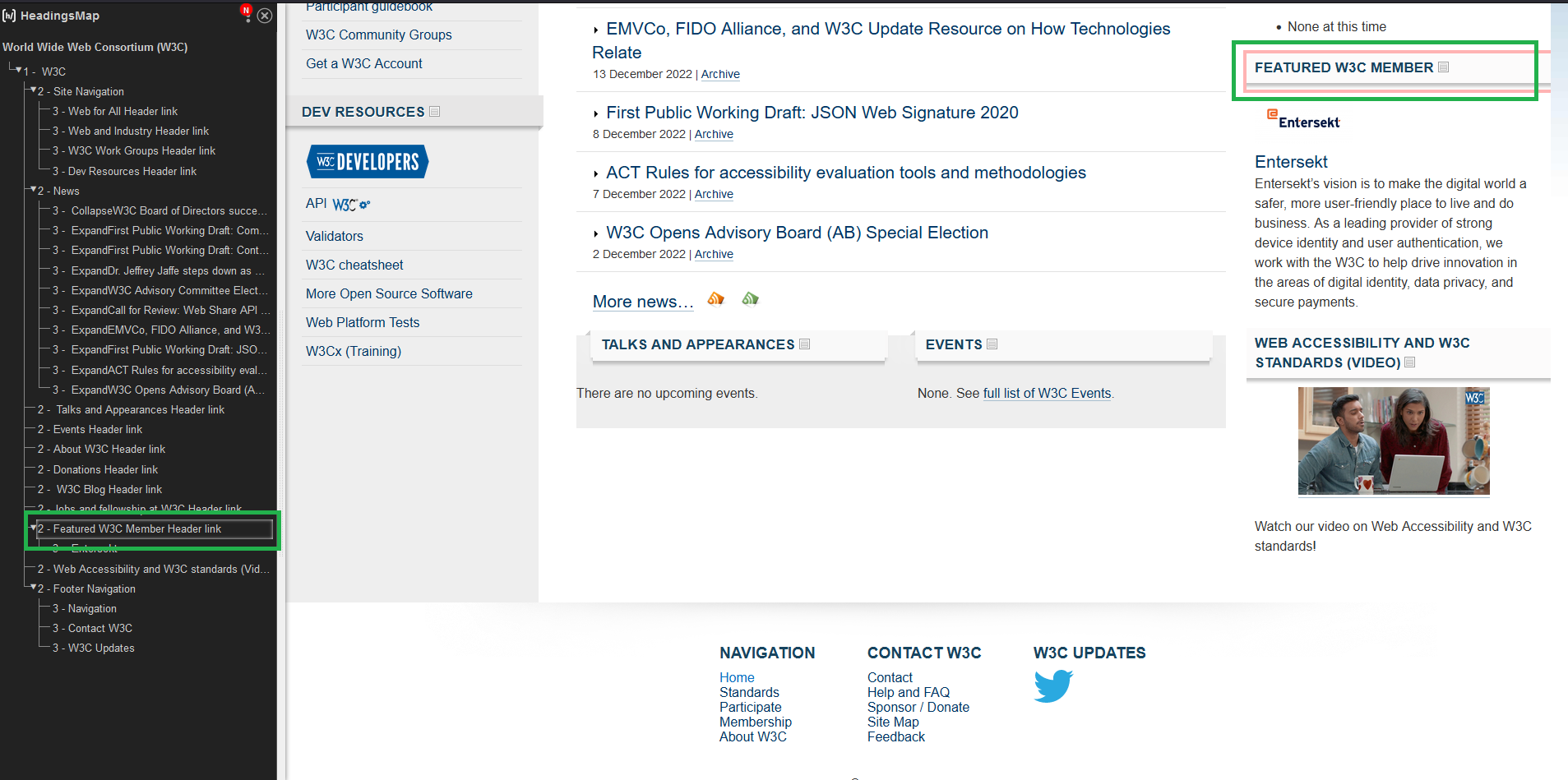
The example below shows what a skipped heading looks like once it’s flagged - the section highlighted in red is where the outline jumps a level, which is exactly the kind of thing that’s invisible on the rendered page but obvious once you look at the heading structure directly.
For how these headings relate to landmark regions like <nav> and <main>, see HTML landmarks for accessibility - and for when to reach for a heading-bearing <section> versus a plain <div>, see semantic HTML vs div soup.
Scenarios and Edge Cases
Visually smaller headings that must stay semantically correct
Sometimes a design calls for a smaller heading that visually looks like an <h5> but semantically should be an <h2>. Use CSS to change the visual size while keeping correct heading levels:
<!-- Do not change the heading level to match visual size -->
<h2 class="heading--small">Section Title</h2>
.heading--small {
font-size: 1rem; // Visually small, but semantically still h2
}Heading levels inside modals and dialogs
See accessible modals and dialogs for the rest of what a modal needs to get right beyond its heading level.
Modal dialogs are visually separate from the page, but they remain part of the same DOM. Starting a modal with
<h1>can confuse screen reader users because the page already has an<h1>.Best practice: Start modal headings at the next logical level in the parent page’s hierarchy, or use
aria-labelledbyto reference the modal’s heading without relying on heading levels at all.
<div role="dialog" aria-labelledby="modal-title" aria-modal="true">
    <h2 id="modal-title">Confirm Deletion</h2>
    <p>Are you sure you want to delete this item?</p>
</div>
Third-party widgets breaking heading structure
Embedded widgets (chat bots, social media feeds, ads) may inject their own
<h1>or<h2>tags, breaking the host page’s heading hierarchy.What you can do: Audit embedded content with the HeadingMap tool. If the widget exposes configuration options, set appropriate heading levels. If it does not, document the issue and raise it with the vendor.
Dynamic content and heading levels
In single-page applications (SPAs), dynamically loaded sections may introduce headings out of order.
After a route change, ensure the new content’s heading structure follows a proper hierarchy relative to the overall page layout - see focus management in SPAs for the focus-handling half of this same problem.
If you found this helpful, share it with someone who's building for the web.