Indicate img elements that miss alt attribute
What is an alt attribute?
The alt attribute is the text a screen reader announces in place of an image - it’s the primary way blind and low-vision users get the same information a sighted user gets by looking at the picture. It also doubles as a fallback if the image itself fails to load, but that’s a side effect, not the main job.
Tips for writing good alt text
- Keep it short and describe what the image conveys in context, not just what’s literally in it.
- Skip “image of” or “photo of” - a screen reader already announces that it’s an image, so adding it in the text is just redundant.
- Capitalize the first letter, matching normal sentence style.
- Further reading: Accessibility: Image Alt text best practices and the W3C Alt Decision Tree.
This CSS gives you a red outline on any img with a missing or blank alt attribute - useful during development, and covered alongside other CSS debugging techniques in CSS techniques for accessibility testing:
img:not([alt]),
img[alt=''] {
    outline: 8px dashed red;
}
Tools to find the missing alt text in the webpage
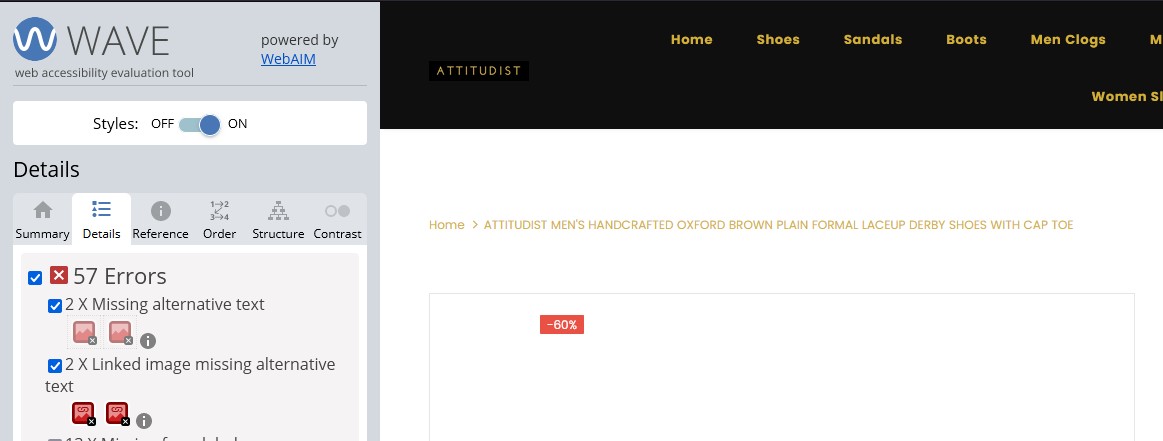
- WAVE Accessibility Evaluation Tool - flags missing alt text automatically, and is one of the tools covered in the accessibility testing checklist.
The screenshot below shows the WAVE toolbar flagging that missing-alt error directly on the page:
Scenarios and Edge Cases
Decorative images - when to use empty alt text
Not every image needs descriptive alt text. Purely decorative images (borders, spacers, background flourishes) should use an empty alt attribute so screen readers skip them:
<!-- Decorative image - screen readers will ignore this -->
<img src="decorative-border.png" alt="" role="presentation" />
Important: An
<img>with noaltattribute at all is not the same asalt="". Missingaltcauses screen readers to announce the file name, which is confusing. Always include the attribute, even if empty.
Inline SVG icons
SVG icons do not behave like <img> elements and need different treatment:
- Decorative SVGs: Use
aria-hidden="true"and ensure there is visible or visually-hidden text nearby.
<button>
    <svg aria-hidden="true" focusable="false">
        <use href="#icon-search"></use>
    </svg>
    Search
</button>- Informative SVGs: Add
role="img"and a<title>element with anid, then reference it witharia-labelledby.
<svg role="img" aria-labelledby="chart-title">
    <title id="chart-title">Monthly revenue chart</title>
    <!-- SVG content -->
</svg>
Edge case: Set
focusable="false"on decorative SVGs in older versions of IE/Edge to prevent them from receiving keyboard focus.
Complex images (charts, graphs, infographics)
For images that convey data or complex information, a short alt text is not enough:
Use
aria-describedbyto link to a longer description elsewhere on the page.Or provide a visually hidden
<details>/<summary>element with the full description.
<figure>
    <img
        src="quarterly-sales.png"
        alt="Quarterly sales chart showing growth in Q3"
        aria-describedby="chart-description"
    />
    <figcaption id="chart-description">
        Q1: $120k, Q2: $95k, Q3: $210k (record high), Q4: $180k.
        The spike in Q3 was driven by the summer product launch.
    </figcaption>
</figure>
CSS background images
CSS background-image is invisible to screen readers entirely. If a background image conveys meaning:
Add a visually hidden text alternative.
Or use an
<img>tag instead so it can carryalttext.
<div class="hero" role="img" aria-label="Mountain landscape at sunset">
    <!-- Content overlaying the background -->
</div>
Lazy-loaded images
When using
loading="lazy", ensure thealtattribute is still present from the start - not injected later by JavaScript.Some lazy-loading libraries replace
srcwithdata-srcand only swap them on scroll. Screen readers may announce a broken image ifsrcis empty or points to a placeholder. Always provide a validsrcor use the nativeloading="lazy"attribute.
Images inside <a> links
When an image is the only content inside a link, the alt text becomes the link’s accessible name. Make sure it describes the destination, not the image:
<!-- Do not -->
<a href="/profile"><img src="avatar.jpg" alt="Photo of a person" /></a>

<!-- Do -->
<a href="/profile"><img src="avatar.jpg" alt="View your profile" /></a>
If you found this helpful, share it with someone who's building for the web.